What does preparing mean on Meta Ads? It is the delivery status Meta shows while it processes a newly published or approved ad, before the ad starts serving. When a funded campaign shows no impressions, the real worry behind the question is whether delivery is simply delayed or the ad has been rejected.
This guide explains what the status means, how long processing usually takes, how to check whether your ad is really stuck, and what not to do while you wait.
What Does Preparing Mean on Meta Ads?
Preparing on Meta Ads means Meta is still processing an ad that has just been published or approved, and delivery has not started yet. It applies across Meta ads placements on Facebook, Instagram, Messenger and Audience Network.

Keep one point in mind: Preparing does not mean your ad has been rejected. A rejected ad shows a separate status with a reason.
How Long Do Meta Ads Take to Process?
Most ads stay in Preparing for a few minutes to a few hours, and in some cases up to 24 hours. Timing depends on Meta’s processing volume, the complexity of the ad, the campaign setup, the state of your account and any recent edits.
Do not treat 15 or 30 minutes as a guaranteed deadline. The useful check is whether the campaign starts delivering. Once the ad serves, impressions and reach appear in reporting, so check the numbers rather than trusting the status label on its own. If you are still waiting on first results after that, our guide on how long Meta ads take to start working explains the learning phase.
How Do You Fix an Ad Stuck on Preparing?
Give the ad time first. If only one ad is stuck, inspect its creative and landing page; if every ad has stopped, check your payment method and account status first. Then work through these steps in order.
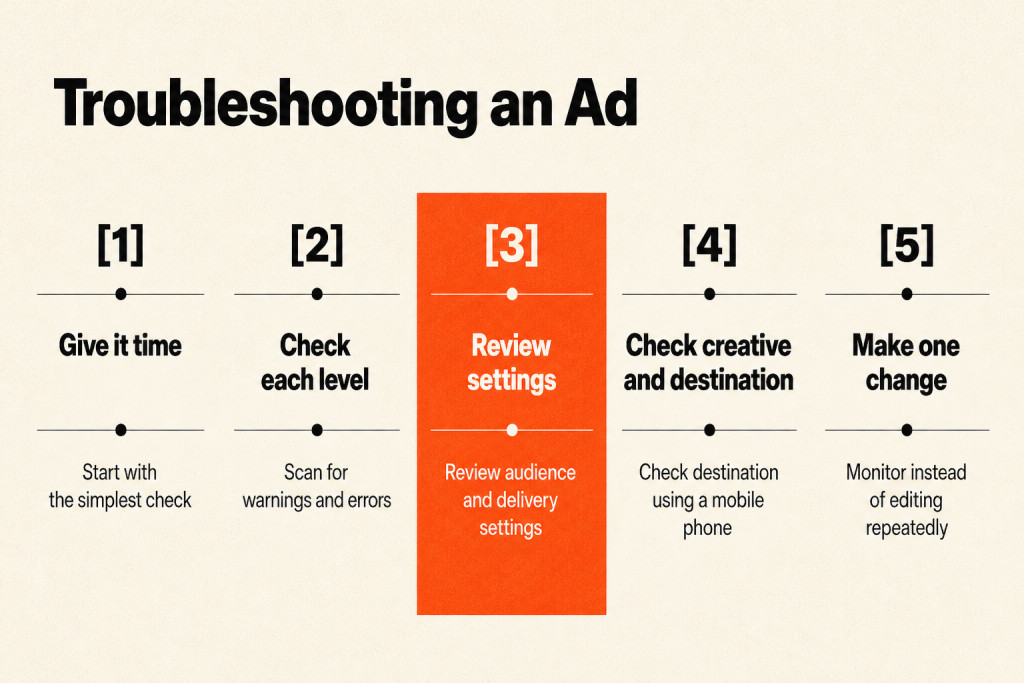
1. Give the campaign some time
A short spell in Preparing is normal after publishing or approval. Waiting is often the best first move, because changing several settings can trigger fresh processing or review.
2. Check the campaign, ad set and ad levels
In Ads Manager, open the campaign, then the ad set, then the ad. At each level, look for warnings, errors, rejected components and delivery restrictions, and confirm everything is switched on. A campaign can look fine while the problem sits at ad set or ad level.
3. Check your payment method and account status
Billing can hold up delivery even when the creative is fine. Confirm that your payment method works and has not been declined, and check Account Quality for restrictions. Adding funds elsewhere does not automatically clear a Meta billing issue.
4. Review the audience and delivery settings
Check these ad set settings for anything too narrow or contradictory:
- Location
- Age range and gender
- Custom audiences and exclusions
- Budget and schedule
- Optimization event
- Placements
If you find a real configuration problem, fix it and republish. Do not change settings just to push the ad out of Preparing.
5. Check the creative and destination
Review the primary text, image or video, headline, call to action, and the landing page, website URL or WhatsApp destination. Open the destination on a mobile phone to make sure it loads.
6. Refresh Ads Manager and your browser
If the status seems frozen, refresh Ads Manager, sign out and back in, or try a private window and clear the cache. A stale browser view and a real delivery problem are different issues, so do not assume the browser is to blame first.
7. Make one controlled change if the ad is genuinely stuck
Once the obvious checks are done, make one meaningful change, such as correcting a placement, audience or creative issue, then republish and monitor. Changing everything at once makes it impossible to know which change fixed delivery.
What Should You Avoid Doing While an Ad Is Preparing?
While the ad is Preparing, keep the campaign steady. Avoid:
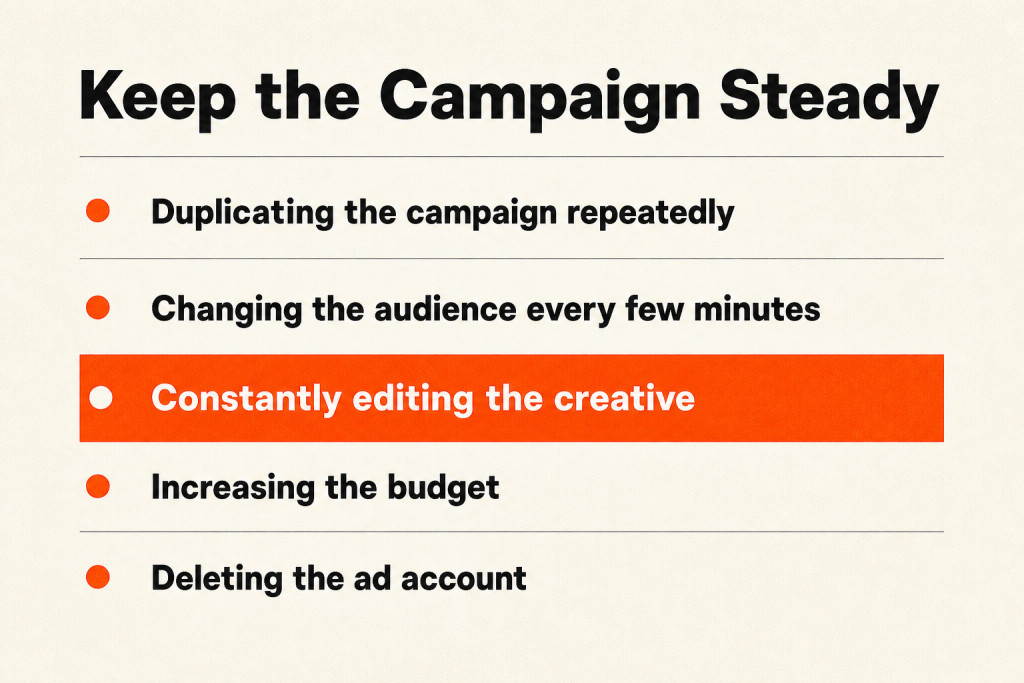
- Duplicating the same campaign repeatedly
- Changing the audience every few minutes
- Constantly editing the creative
- Raising the budget just because the ad says Preparing
- Deleting and recreating the ad account
- Assuming Preparing means rejection
- Blaming your Facebook Page without checking the delivery status
Editing the ad, or switching it off and on again, counts as a manual update and sends it back to the start of processing.
Frequently Asked Questions
Is Preparing the same as In review?
No. In review means Meta is checking the ad against its advertising standards. Preparing usually comes after approval or publishing, while Meta gets the ad ready to deliver. An ad can move from In review to Preparing to Active.
Does Preparing use my budget?
No. You are only charged when the ad delivers impressions or results, depending on your billing event. While the status says Preparing and reporting shows no impressions, nothing is spent.
What if my ad says Active but still has no impressions?
Active means the ad is eligible to deliver, not that it is winning auctions. Check whether the audience is too small, the bid or cost cap is too low, or the budget is too thin for the optimization event. Our guide on how much Meta ads cost helps you set a realistic budget.
Conclusion
So, what does preparing mean on Meta Ads? It is a normal processing step, not a verdict on your ad. Let the ad process, confirm delivery in reporting, and keep the campaign steady while you wait. If it stays stuck, troubleshoot one layer at a time: campaign settings, billing, audience, creative and browser. If you would rather have specialists watch delivery for you, our digital ads team can manage your Meta campaigns.