If you are wondering where to find Meta Ads Manager, the quickest answer is adsmanager.facebook.com on desktop, or the Meta Ads Manager app on your phone. The best route still depends on what you need to do next: a quick campaign check and a deeper edit do not call for the same workspace.
This guide shows each route on desktop and mobile, explains what Ads Manager does, and helps you fix the most common access problems before you waste time in the wrong place.
Where to Find Meta Ads Manager on Desktop?
On desktop, go to adsmanager.facebook.com and sign in with the Facebook account linked to your ad account. If you have only one ad account, Meta selects it by default.
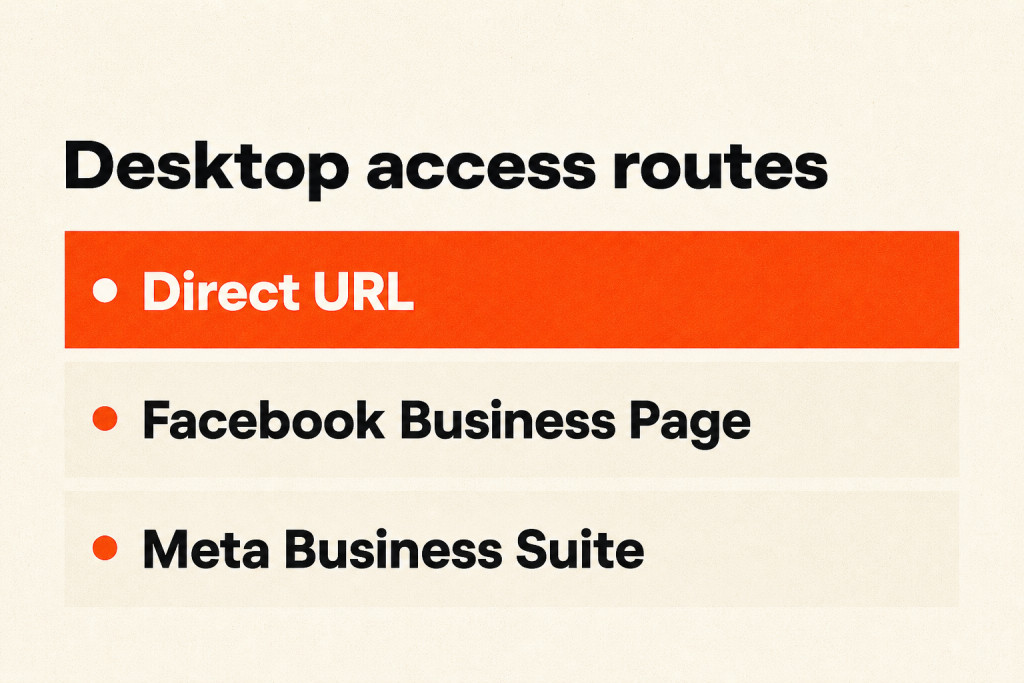
You can also open Ads Manager through Facebook or Meta Business Suite:
- Log in to Facebook and open your Business Page from the left-hand menu.
- Click Manage Ads in the sidebar, or open the Ads dropdown.
- Choose Ads Manager to open your campaign dashboard.
Or, through Business Suite:
- Log in to Meta Business Suite at business.facebook.com.
- Click Ads in the left navigation menu to reach Ads Manager.
How to Access Meta Ads Manager on Mobile?
On mobile, you can open basic Ads Manager tools inside the Facebook app, or install the free Meta Ads Manager app for fuller control.

In the Facebook app on iPhone or Android, open the menu and choose Ads Manager. For more features, download Meta Ads Manager from the App Store or Google Play. The app lets you:
- Monitor campaign performance in real time
- Edit ads and update budgets
- Create new campaigns
- Get push notifications about delivery and spend
The app is ideal for checking spend and pausing campaigns while you are away from your desk. Detailed creative work and complex targeting rules are still far easier on desktop.
What Is Meta Ads Manager and How Does It Work?
Meta Ads Manager is Meta’s web and mobile workspace for creating ads and tracking results across Facebook, Instagram, Messenger and Audience Network. Use desktop for full campaign controls, mobile for quick checks, and Business Suite for everyday Page work. For a full setup walkthrough, see our guide on how to run Meta ads.

Every campaign in Ads Manager is built on three levels:
| Level | What you set here | Example |
|---|---|---|
| Campaign | The objective: what you want people to do | Leads, Sales or Traffic |
| Ad set | Audience, location, budget, schedule and placements | Homeowners within 20 miles, £15 a day |
| Ad | The creative, text and where the click goes | A video of a finished kitchen with a free survey offer |
Together, these levels connect the action you want with the people you want to reach and the ad they will see.
Meta’s current objectives are Awareness, Traffic, Engagement, Leads, App promotion and Sales, and each one tells Meta what to optimize for. Choose the objective that matches your goal. If you want enquiries, pick Leads or Sales rather than Traffic, because Traffic finds people who like to click, not people who like to enquire.
At the ad set level you can use custom audiences, lookalike audiences or saved audiences. Custom audiences come from your own data or from people who engaged with you on Meta; lookalike audiences target people who resemble them.
The Ads Manager menu groups its tools into five areas:
- Plan: research your audience and plan ad ideas.
- Create & Manage: build, monitor and edit campaigns in the Campaigns, Ad Sets and Ads tabs.
- Measure & Report: compare performance, track conversions and build custom reports.
- Assets: find saved audiences, image and video libraries, and Meta Pixel settings.
- Settings: change payment methods, account details and user roles.
To track leads beyond the count Ads Manager shows, connect a few more pieces:
- The Meta Pixel. Add a snippet to your site so Meta can see visits and actions.
- Conversions API. Send conversions through a server-side connection, which is more reliable than the Pixel alone.
- Conversion events. Define what counts as a conversion, such as a form submission, a booking or a purchase. Without them, Meta can only optimize for clicks.
- A way to mark good leads. Ads Manager shows leads, not whether they were any good. Track which enquiries became customers.
Why Can’t You Access Meta Ads Manager?
You may not be able to access Meta Ads Manager because of account restrictions, login or loading problems, payment failures or verification issues. Common causes include:
- Account restrictions: policy violations can limit access to your ad account.
- Login errors: wrong credentials or two-factor authentication problems can block sign-in.
- Forgotten password: reset it through Meta’s password help page before trying again.
- Loading failures: Ads Manager may not load or may crash; Meta’s status page shows known outages.
- Payment failures: declined payments and billing errors can lock the account.
- Verification problems: identity or domain verification may be incomplete.
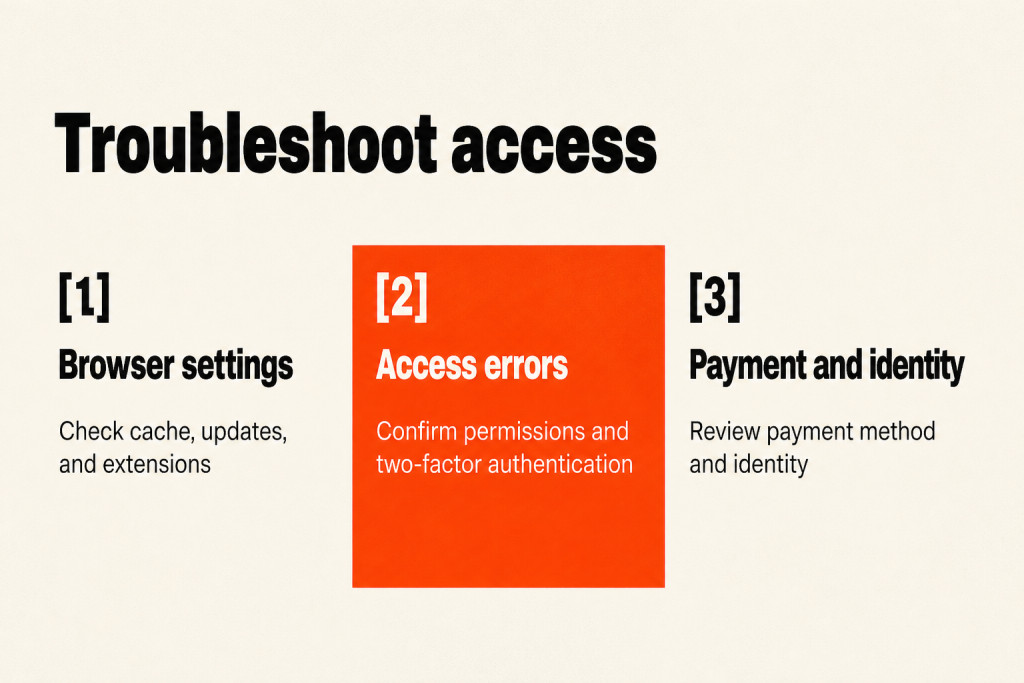
Work through these fixes in order.
1. Fix loading errors
- Check that your internet connection is stable.
- Clear your browser cache and cookies.
- Update your browser to the latest version.
- Turn off recently added extensions, especially ad blockers.
- Try a private window, or wait a few minutes and try again.
2. Resolve access errors
- Check that you have an admin role or the right ad permissions on the Facebook Page and ad account.
- Confirm that advertising permissions have been granted to your account.
- Turn on two-factor authentication for a more secure login.
3. Verify payment and identity
- Upload a valid ID if Meta asks for one, such as a driver’s license or passport.
- Confirm your address details.
- Check that your payment method is active and up to date.
Frequently Asked Questions
What is the difference between Ads Manager and Business Suite?
Meta Business Suite is for everyday Page work: publishing organic posts, replying to messages and running simple boosts. Ads Manager handles full ad setup, from objectives, audiences and budgets to bidding and reporting. If you are new to the platform, start with our guide to what Meta ads are.
Is Meta Ads Manager free?
Yes, Meta Ads Manager is free to use. Meta only bills you for ad delivery, capped at the budget you set.
Conclusion
Now you know where to find Meta Ads Manager: adsmanager.facebook.com on desktop, the Ads Manager link in Facebook or Business Suite, or the free mobile app. Use desktop for full campaign controls, mobile for quick checks, and Business Suite for posts, messages and simple boosts. If you cannot get in, work through loading, access and verification fixes in that order. And if you would rather have experts manage the account for you, our digital ads team can help.