To learn how to schedule Meta ads, start with one setting most people miss: ad scheduling (dayparting) only appears when the ad set uses a lifetime budget. Pick the budget type first, then set your flight dates and the hours your ads should run.
This guide walks through each step in Ads Manager, the rules that decide when your ads actually deliver, and how to choose hours that reach your audience without starving the campaign.
How to Schedule Meta Ads Step by Step?
To schedule Meta ads, create a campaign, switch the ad set to a lifetime budget, set start and end dates, choose your delivery hours in Ad scheduling, and review before publishing.
Sign in to Meta Ads Manager with an account that has permission to create ads on the ad account. Click Create, choose an objective such as Traffic, Leads or Sales, and continue to the ad set. If this is your first campaign, our guide on how to run Meta ads covers the full setup.
Step 1: Select a Lifetime Budget
Ad scheduling requires a lifetime budget. With a daily budget, the scheduling option is greyed out and the hour grid stays hidden.
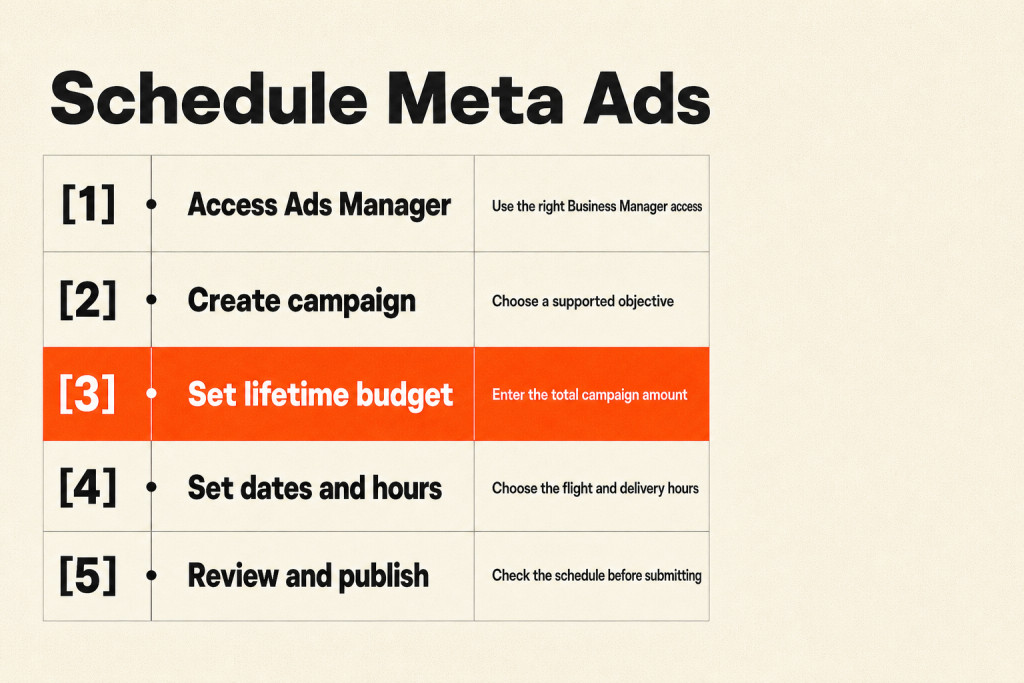
In the Budget & schedule section, switch Daily budget to Lifetime budget and enter the total amount you plan to spend over the whole flight. If you use campaign budget (Advantage+ campaign budget), make the same change at campaign level.
Meta paces a lifetime budget across the full flight, which is why it can concentrate spend into the hours you choose.
Step 2: Set Flight Dates
Enter a start date and an end date. Both are required with a lifetime budget. Your ads stay inside that window and stop automatically when it ends, so you do not need to switch them off.
Step 3: Select Active Delivery Hours
In the ad set, open Ad scheduling, choose Run ads on a schedule, then mark the days and hours your ads should run.
- Use the time grid: the schedule is laid out in one-hour blocks for each day of the week. You can set different hours per day or repeat the same block every day.
- Select blocks quickly: drag across the grid to mark several hours at once.
- Example schedules: Monday to Friday from 9 AM to 5 PM for a B2B service, or 12 PM to 2 PM and 7 PM to 10 PM for an online store whose sales peak at lunch and after dinner.
Step 4: Review and Publish
Before you publish, check the dates, budget and schedule in the review panel. Ads Manager flags a missing end date or a start date in the past before the campaign can go live.
After launch, you can still change the end date and adjust the hours of an existing lifetime budget schedule from the ad set’s Edit panel. Edits may send the ad set back through a short review.
What Rules Apply to Meta Ad Scheduling?
Meta ad scheduling needs a lifetime budget, a start date of today or later, and an end date, and it runs on the time zone you choose for the schedule.

- Start dates: past dates are rejected, so choose today or a later date.
- End dates: a lifetime budget campaign cannot publish without one, so plan the flight before building the ad set.
- Time zone: by default the schedule follows your ad account time zone. You can switch it to the viewer’s time zone so ads run at the same local hours in every region. A mismatch can put your ads in front of people at the wrong time of day.
- Delivery pacing: Meta tries to spend the lifetime budget across the scheduled hours. If the window is very narrow, for example 10 hours a week, it spends more heavily inside those hours to use the budget.
When Should You Schedule Your Meta Ads?
Schedule Meta ads for the hours when your audience is active and, for lead generation, when your team can respond quickly.

For service businesses such as plumbers or B2B consultancies, running ads only during staffed hours means someone is available when a lead calls. Working professionals often respond early in the morning, at lunchtime or late in the evening, so test those windows.
A simple way to find the best hours is to run two identical ad sets on different schedules for a few weeks, then compare cost per result. Keep the window broad enough, though. A very narrow schedule reduces the auctions your ads can enter and can push up costs, so avoid limiting delivery to one or two peak hours unless your data clearly supports it.
Frequently Asked Questions
Can you schedule ads with a daily budget?
You can set start and end dates with a daily budget, but you cannot choose specific delivery hours. Dayparting needs a lifetime budget.
Can you add a schedule to an ad set that is already running?
Not if it uses a daily budget, because you cannot switch a published ad set from daily to lifetime budget. Duplicate the ad set, set a lifetime budget and schedule on the copy, then turn the original off.
Which time zone determines ad delivery?
The schedule uses your ad account time zone unless you choose the viewer’s time zone. Use viewer time when the offer fits a daily routine across regions, and account time when delivery must match your team’s working hours.
Conclusion
That is how to schedule Meta ads: set a lifetime budget, add start and end dates, mark your delivery hours and check the time zone before you publish. Match the hours to when your audience is active and when your team can respond, and keep the window wide enough for Meta to find enough auctions. Test two schedules side by side and let cost per result decide. If you want help planning budgets and schedules, our digital ads team can manage your Meta campaigns, and our guide to how much Meta ads cost helps you size the budget.