If you are searching for how to reset Meta Ads Manager, the first thing to know is that there is no single reset button. “Resetting” usually means clearing what is stuck: your saved views and filters, unpublished drafts, a spending limit, or the browser data behind a glitchy interface. Your campaigns, ads and results stay in place.
This guide walks through what to check first, what you can actually reset, and how to fix loading problems in your browser.
Step 1: Review Ad Account Status
Before you reset anything, confirm the problem is not with the ad account itself. Restrictions and failed payments often look like a tool glitch.

Account standing:
Open Account Quality in Meta Business Suite and check whether the ad account, your profile or your business portfolio has any restrictions or policy issues. A reset will not remove a restriction. You need to fix the issue or request a review.
Billing:
Check Billing & payments for a failed charge or an unpaid balance. Ads stop delivering until the balance is paid, which can look like Ads Manager has frozen.
Ad review:
If ads sit in review or show “Preparing” for a long time, the cause is usually review or processing, not the interface. Our guide on what Preparing means on Meta Ads covers the fixes.
Step 2: How to Reset Meta Ads Manager
To reset Meta Ads Manager, return your table view to its defaults, clear filters, discard unpublished drafts, and reset your account spending limit if it is blocking delivery. Each one fixes a different problem.
- Reset columns and views: In the Campaigns, Ad sets or Ads tab, open Columns and switch back to a default preset such as Performance. Clear any saved filters and remove breakdowns so the table shows all campaigns again.
- Check the date range: A narrow or old date range can make campaigns look empty. Set it back to a recent period such as the last 7 or 30 days.
- Discard drafts: If unpublished edits are causing errors, use Discard drafts to drop them and go back to the published version. Published campaigns are not affected, but unsaved changes are lost, so review them first.
- Reset the account spending limit: If ads stopped because the account hit its spending limit, go to Billing & payments > Account spending limit and choose to reset, change or remove it.
- Sign out and back in: Logging out of Facebook and Meta Business Suite and signing back in refreshes your session and permissions.
If you cannot find Ads Manager after signing back in, see where to find Meta Ads Manager on desktop and mobile.
Step 3: Reconfigure Data Sources
After a reset, check that your tracking and integrations still send data. Open Events Manager, select your pixel or dataset and confirm it is receiving events.

- In Events Manager, open the dataset connected to your ad account.
- Check the Overview tab for recent events and any warnings.
- Confirm the dataset is assigned to the right ad account in Business Settings.
- Reconnect any CRM or lead tools that sync leads from your ads, then send a test lead.
- Review your data sharing settings to stay compliant with privacy rules.
Should you clear your browser cache?
Yes, if Ads Manager loads slowly, shows blank tables or keeps freezing, clearing your browser’s cache and cookies often fixes it, because old or damaged files can break the interface.
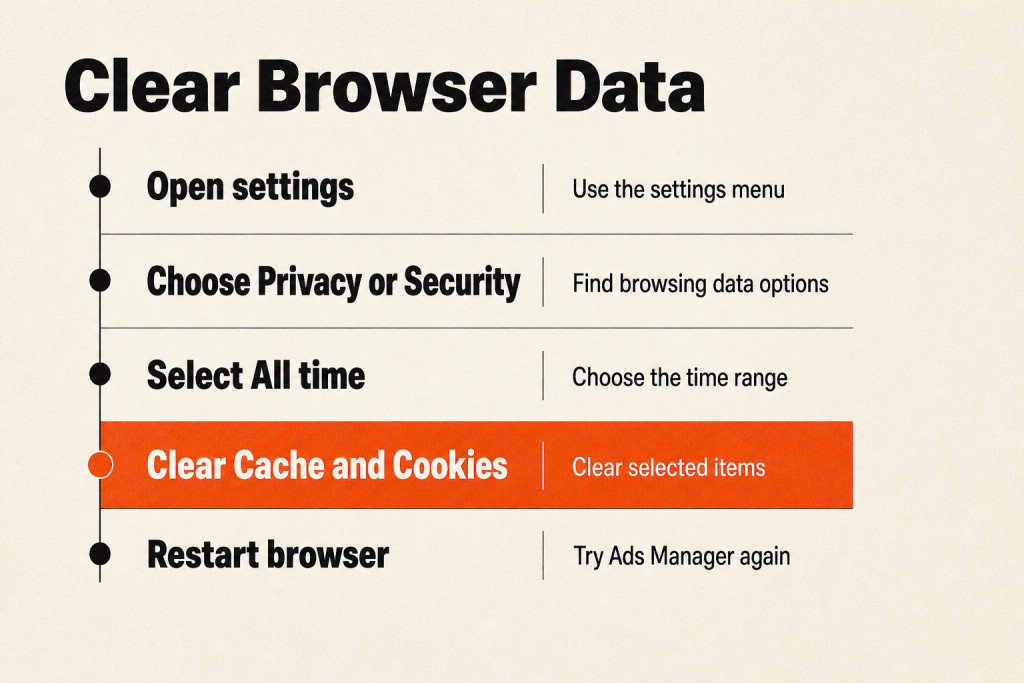
- Open your browser’s settings menu.
- Go to Privacy or Security.
- Find the option to clear browsing data.
- Choose All time as the time range.
- Select Cache and Cookies.
- Clear the data.
- Restart your browser and open Ads Manager again.
To test quickly before clearing everything, open Ads Manager in a private or incognito window. If it loads cleanly there, stored browser data is the likely cause. Turning off browser extensions, especially ad blockers, can also help.
If the problem continues, try another browser or device, then contact Meta support.
Frequently Asked Questions
Does resetting Meta Ads Manager delete my campaigns?
No. Resetting views, discarding drafts or clearing your browser cache does not delete published campaigns, ad sets, ads or their results. Discarding drafts only removes unpublished edits.
Can I start over with a new ad account?
Yes. You can create another ad account in your business portfolio, within Meta’s limits, and close one you no longer use. If an account is restricted, follow Meta’s review process instead of opening a new one to get around it. Our guide on how to make a Meta ads account covers the setup.
Conclusion
Knowing how to reset Meta Ads Manager saves time because the fix depends on the problem. Check account status and billing first, then reset your views, discard stuck drafts or reset the spending limit, and clear browser data if the interface will not load. None of these steps delete your published campaigns. If account issues keep getting in the way of your campaigns, our digital ads team can audit and manage your Meta account.