Working out how to link Instagram account to Meta Ads Manager gets frustrating when the Instagram profile, Facebook Page and ad account do not seem to line up. The good news is that every problem comes down to one of four things: the account type, the business portfolio, the Page connection or the ad account permissions.
This guide covers what you need before you start, the four linking steps, and how to fix the most common errors without starting over.
What Do You Need Before Linking Your Instagram Account?
You need a professional Instagram account (Business or Creator), its login details, full control of the destination business portfolio, and access to an active ad account. Personal Instagram accounts cannot connect to Ads Manager.

- Login details: have the Instagram username, password and two-factor authentication method ready. Sign in only through the official Meta or Instagram login window.
- A professional Instagram account: the account must be a Business or Creator account. If yours is personal, Meta may prompt you to switch during the connection.
- Portfolio ownership: each Instagram account can belong to only one business portfolio at a time. If another portfolio already owns it, ask its owner to release it or to give you access.
- Business portfolio access: you need full control of the portfolio you are adding Instagram to. Access to a Page or ad account alone is not enough.
If you do not have a business portfolio yet, set up a Meta ads account at business.facebook.com first. The person who will run the ads also needs at least Advertiser access to the ad account, as well as access to the Instagram account inside the portfolio. Adding Instagram to the portfolio does not, on its own, give anyone permission to advertise with it.
How to Link Instagram Account to Meta Ads Manager?
To link Instagram account to Meta Ads Manager, add the account to your business portfolio, connect it to your Facebook Page, assign it to your ad account, and then give your team access. Keeping all four assets in one portfolio keeps your data, billing and audiences in one place.
Running campaigns through Ads Manager on desktop also avoids the extra fee Meta adds to boosts paid for inside the Instagram iOS app.
Step 1: Add the Instagram Account to Business Settings
- In Meta Business Suite, open Settings for the correct portfolio.
- Under Accounts, select Instagram accounts.
- Select Add.
- Review the information, then select Add Instagram account.
- In the new window, enter the username and password for the professional Instagram account and select Log in. Complete any cookie, professional account or two-factor prompts.
- Select Confirm and wait for the success message, then check that the right account appears in the portfolio.
Step 2: Connect the Instagram Account to the Facebook Page
Connect Instagram to your Facebook Page from the Instagram app. This link lets you cross-post and manage messages and ads from one place, and it is different from linking Instagram to your personal Facebook profile.
Before you start, make sure the Instagram account is professional, you have full control of the Facebook Page, and both assets sit in the same business portfolio.
- Open the business profile in the Instagram app and select Edit profile.
- For a business account, open Public business information; for a creator account, open Profile information. Tap Page, then Connect or create.
- Sign in to Facebook with an account that has access to the Page. Switch accounts if needed.
- Select the correct Facebook Page, check its name, then tap Connect.
Step 3: Assign the Instagram Account to the Ad Account
In Business Settings, open the Instagram account, choose Connected assets > Add assets, and select your active ad account.
An Instagram profile can sit in the portfolio without being assigned to an ad account, and in that case you cannot pick it in campaigns. Once the assets are connected, our guide on how to run Meta ads walks you through creating the first campaign.
Step 4: Assign Instagram Access to Team Members
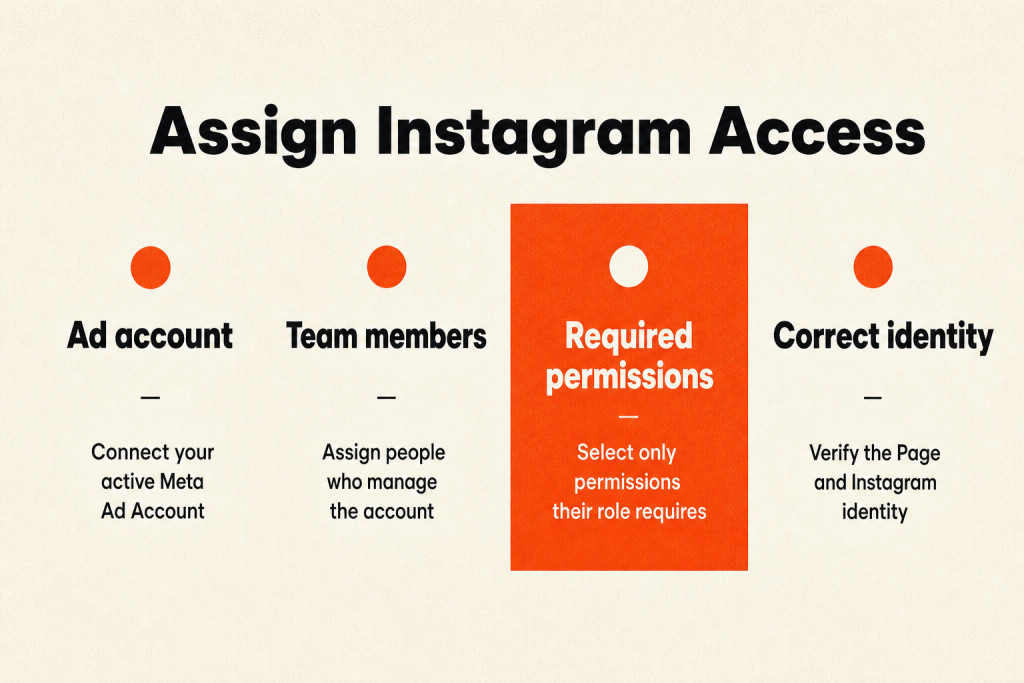
- Open Settings in Meta Business Suite for the correct portfolio.
- Under Accounts, select Instagram accounts.
- Choose the Instagram account the person will manage.
- Select Assign people.
- Choose the person, then turn on only the permissions their work needs. Read each description rather than relying on old role names.
- Select Assign, then Done.
Each person must already belong to the business portfolio before you can assign access. Team members never need the Instagram password, and agencies working from their own portfolio can be given partner access instead. Before launch, open Ads Manager and confirm that the right ad account, Facebook Page and Instagram identity appear together.
How Do You Fix Common Connection Errors?
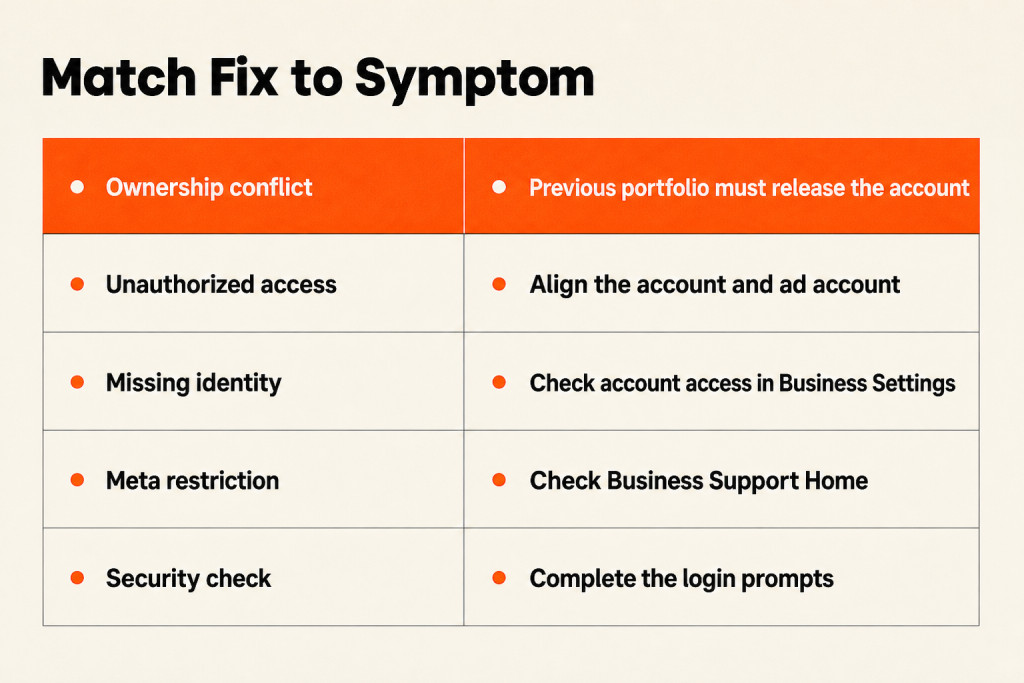
Most connection errors come from portfolio ownership, missing permissions, account restrictions or unfinished login checks. Identify which one you have before you try again.
Instagram is already in another business portfolio
An “already claimed” message means another portfolio owns the account, often a former employee or agency. They must remove it from their portfolio before you can add it to yours. Review current ads, linked Pages and permissions first, so the transfer does not break running campaigns.
“You are not authorized to use this Instagram account”
The Instagram account and the ad account need to be managed by the same portfolio. If two different portfolios control them, transfer one asset or request access.
Instagram does not appear in the identity dropdown
The account is either not connected to the portfolio yet, or your user does not have access to it. Open Business Settings > Instagram accounts and check both.
Meta reports a restriction
A restriction can apply to the portfolio, an ad account, a Page or a person. Check Business Support Home and follow the review or appeal process there; reconnecting will not lift a restriction.
The login or security check does not complete
Sign in to the Instagram account directly and confirm you can reach its two-factor method. Keep the official login window open while you complete the prompts. If the account needs recovery, finish that first.
Frequently Asked Questions
Do I need a Facebook Page to run Instagram ads?
Not always. You can boost a post from the Instagram app with only your Instagram account as the identity, but several campaign types in Ads Manager need a linked Page. A connected Page also unlocks fuller retargeting, conversion tracking and placement controls, so it is highly advisable. Learn more in our guide to what Meta ads are.
Can I run Instagram ads without a Facebook account?
No. Ads Manager requires a Facebook user account with access to the business portfolio and ad account.
Conclusion
The answer to how to link Instagram account to Meta Ads Manager is to line up four assets: a professional Instagram account, a business portfolio, a Facebook Page and an ad account, plus the right permissions for whoever runs the ads. Add Instagram to the portfolio, connect it to the Page, assign it to the ad account and give your team access, then confirm everything appears together in Ads Manager before you launch. If you would rather hand the setup to specialists, our digital ads team can manage it for you.