When leads and sales come in, it can be hard to tell which ads brought them in—or which actions should actually guide bidding.
If you’re working out how to set up conversion tracking in Google Ads, this guide helps you choose the business actions to measure, set their values and attribution, and check that your tags fire. A tag firing is not the whole story: settings can change how much credit a click or view gets. Follow the steps below in order, and you will know exactly how to set up conversion tracking in Google Ads for every action that matters.
Step 1: Create a Website Conversion Action: How to Set Up Conversion Tracking in Google Ads
Start by opening the account menu, then choose Goals > Conversions > Summary in Google ads.
- Open Goals in the top-right corner of your account menu.
- In Conversions, select Summary.
- Click the blue Create conversion action button.
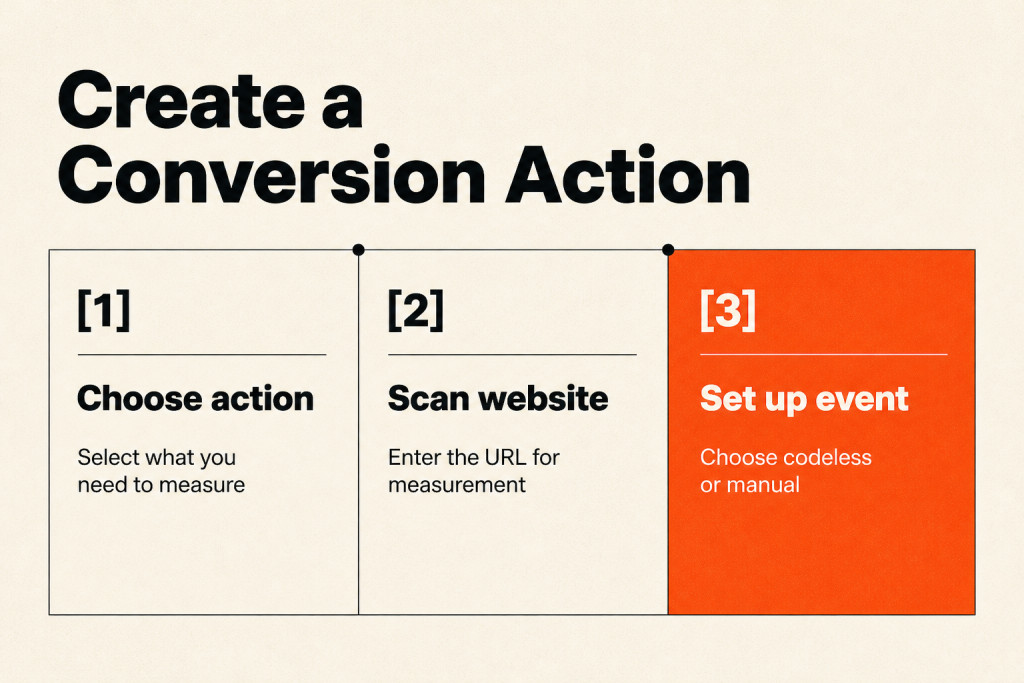
Pick the action type that matches what you need to measure. For the PDF download example, choose Conversions on a website.
Enter the URL where you want to track the conversion, and Google scans the site to find the best way to connect it for web conversion measurement; the Google Tag is already installed in this example.
For the PDF download, set the conversion action to Submit lead form. Sign up and Subscribe are options too; click Set up under the Google tag Conversion source to add an event.
Choose between two event types:
- Create a codeless event: your Google tag can detect the event without adding code to your website.
- Create a manual event: install code on your website to identify which event you want to measure.
A conversion action can fire when someone reaches a ‘thank you’ page URL after submitting a form. Set the Codeless event Page load condition like this:
- Event type, Page load
- Match when, URL contains
- URL, /thank-you-download
If you’re using the manual setup path instead of the codeless Page load event above, choose the Manual event option, name the conversion ‘PDF Download: Thank you page’, for example, then save and continue.
Google Ads conversion actions cover activity across several areas. Here are the action types:
- Website actions: Form submissions, button clicks, and purchases.
- Phone calls: Calls made directly from ads or tracked through a website.
- App downloads or in-app actions: Users installing or engaging with your mobile app.
- Offline conversions: Conversions outside Google Ads, including in-store visits or phone inquiries.
Our experience with e-commerce and lead generation businesses shows that dedicated Google Ads conversion tracking regularly improves conversion data accuracy by 10-20% compared with relying only on imported analytics data.
Three factors help account for the “uplift”:
- Google Ads tracking can directly track conversions associated with ad clicks and views.
- GA4 imports might underreport conversions because of data mismatches, attribution differences, or how GA4 processes user actions.
- Google Ads connects more tightly with its own platform, which supports more accurate reporting.
Google Ads tracking also gives you access to numbers GA4 doesn’t offer. Here are two examples:
- View-through conversions: A conversion is recorded when someone sees your ad, doesn’t click it, and later completes a conversion.
- Engaged-view conversions: These measure conversions after interactions with display or video ads, rather than clicks alone.
Step 2: Configure Value and Attribution Settings
Once you’ve reviewed view-through examples and examples of conversions after an engaged video view, assign each conversion action a value, counting rule, and attribution for ad interactions.
Value
Set a value for every conversion action from the start, so you give its data time to become more useful; Google Ads offers three choices for each one.
- Use the same value for each conversion
- Use different values for each conversion
- Don’t use a value for this conversion action
When qualified leads have roughly equal revenue potential, give them a static estimated value. If cart totals or project scopes vary, send dynamic transaction values from your data layer.
Action optimisation
Choose whether the conversion goal is primary or secondary.
Google Ads uses primary actions to guide bidding and reports them under ‘Conversion’; secondary actions don’t steer bids and appear in ‘All conversions’ instead.
Secondary actions show you more of the conversion journey and can inform decisions. For instance, plenty of people might put an item in their cart and never complete the purchase.
Count
Pick how Google Ads counts conversions for each action; you’ve got two choices.
- Every
- One
Count Every purchase when each sale should register. For lead-generation, enquiry, and sign-up actions, One usually counts only the first interaction as valuable.
Click-through conversion window
The Click-through conversion window tells Google how long after an ad click it can connect a conversion to that click. It sets the tracking period for user activity and determines whether an action qualifies as linked to the original ad.

Set the window to match the sales cycle. A local plumber may get a conversion almost at once, when someone clicks an ad, then picks up the phone to call. A complex offer, such as a healthcare platform for enterprise businesses, may take months to convert, far past the 30 day default. Google Ads lets you choose a window that fits the time customers need, typically anywhere from 1 to 90 days.
Engaged-view conversion window
On YouTube, the Engaged-view conversion window counts conversions after a person watches 10 seconds or more of a video ad. Its default is 3 days, and you can extend it to a maximum of 30 days.
View-through conversion window
View-through tracking can count a later conversion after an ad impression, even if no click took place. The View-through conversion window defines how long that later action can be credited to the impression, rather than to a direct click or interaction. This window is essential for Display, Performance Max, and YouTube campaign types, since a person may see an ad, skip interacting with it, and convert later.
Attribution
An attribution model assigns credit across ad interactions for a conversion action; we suggest Data-driven in 99% of cases.
- Data-driven
- Last-click
Google Ads gives you two attribution models to choose from.
For leads or enquiries, including form submissions and phone calls, either value setting can work:
- Use the same value
- Don’t use a value for this conversion action
For website purchases and sales, choose “Use different values for each conversion” for the conversion action.
Step 3: Deploy Tags with Google Tag Manager
- Create a conversion action in Google Ads by clicking “+” → conversion action, then choose the website where you want to track conversions and fill in the required details. In 99% of cases, we create the conversion action in Google Ads first, then set up a Google Ads Conversion Tracking tag in Tag Manager (GTM). Give that tag a specific trigger to fire it and, ultimately, the conversion action.
- Add the conversion linker tag in GTM and set it to fire on all pages. The Conversion Linker tag stores information such as cookies or local storage items for attribution on conversion events (those are the browser details in play). It acts as a bridge, saving click identifiers in first-party browser storage so conversion tags can still read them after a visitor navigates to another page. Set it to fire on all pages.
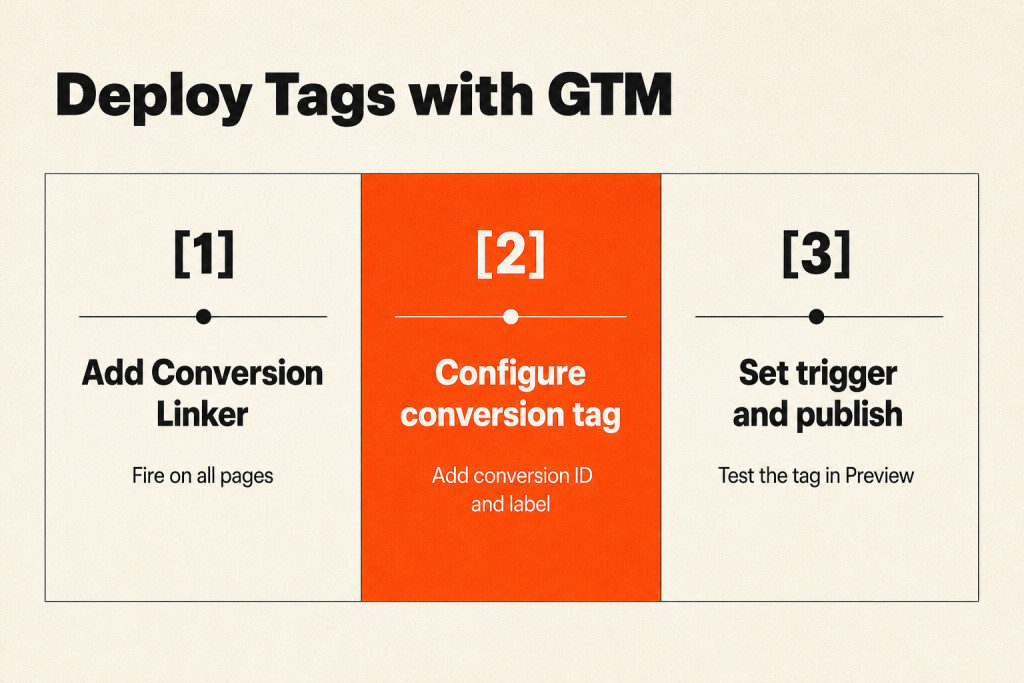
- Create and configure the Google Ads conversion tag, then test it. In your GTM account, click Add New Tag and name the tag. The conversion action’s tag setup shows where to find conversion ID in Google Ads; under Tag Configuration → Google Ads Conversion Tracking, paste the ID and conversion label (available after creating an event). Next, choose when the conversion should trigger by selecting an existing trigger or creating a custom one. Finally, save and submit the changes, then use GTM’s built-in Preview mode to check that the tag works correctly on the needed page.
Step 4: Configure Enhanced Conversions
To configure Enhanced conversions, enable them for a conversion action in Google Ads, choose Google Tag, GTM, or Google Ads API, and select the customer data fields to collect. For a conversion action, Enhanced conversions add hashed first-party customer data (email addresses, phone numbers, or names provided on your website) to your existing tags, improving conversion tracking accuracy.
When a user completes a conversion, Google receives this hashed data and matches it against signed-in Google accounts. This can recover conversions that cookie restrictions, ad blockers, or cross-device behavior might otherwise leave untracked.

Google reports that advertisers using Enhanced conversions see an average improvement of 5% in reported conversions.
To turn on Enhanced conversions, choose how to implement them for a conversion action:
- In Google Ads, go to Goals > Conversions.
- Select the conversion action you want to enhance.
- Toggle on “Enhanced conversions.”
- Choose an implementation method: Google Tag, GTM, or Google Ads API.
- Set which customer data fields to collect; email is the most common.
Enhanced conversions work alongside existing conversion tracking, helping restore attribution signals across privacy-restricted browsers. Your privacy policy must disclose that hashed customer data is shared with ad platforms.
Step 5: Verify Tag Execution in Preview Mode
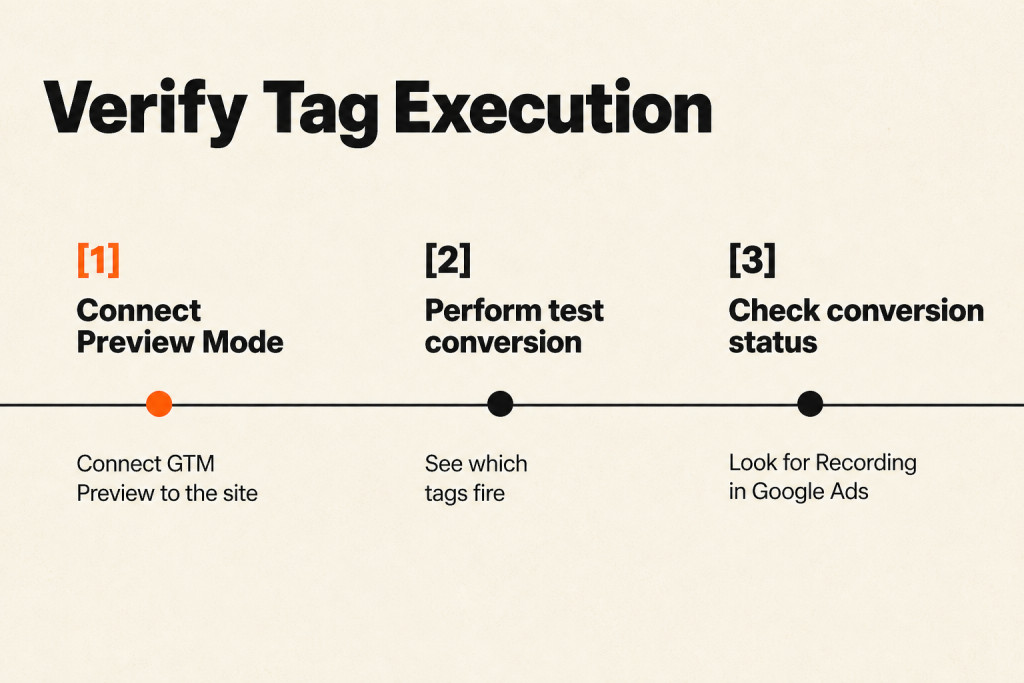
Open Google Tag Manager, connect GTM Preview Mode to the site where the conversion action is set up, and complete a test conversion. If tracking doesn’t fire, debug the setup.
Run these checks to confirm the tags fire correctly:
- Use Google Tag Assistant: Install the browser extension, then open your conversion page to see which tags fire and whether any errors are flagged.
- GTM Preview Mode: When you use Google Tag Manager, enter GTM Preview Mode to see exactly which tags fire during each interaction.
- Perform a test conversion: Complete a test conversion yourself, then check whether it appears in Google Ads under Goals > Conversions within 24-48 hours.
- Check conversion status: In Google Ads, check the conversion status and make sure it reads “Recording,” rather than “Unverified” or “No recent conversions.”
Common Conversion Tracking Implementation Mistakes
Common implementation mistakes include placing tags on the wrong page, counting page views instead of business goals, and allowing duplicate conversions to fire.
- Installing tags on the wrong page, Put the event snippet on the conversion confirmation page, such as a thank-you page, not on the form page itself.
- Counting page views instead of actual actions, If every page load counts as a conversion, reported numbers rise and smart bidding can be led by page views.
- Duplicate conversions firing, When a tag fires more than once for a conversion, use the “One” counting method for leads or add deduplication logic.
When totals seem far too high because a lead event fires more than once, use transaction IDs or conversion IDs to help deduplicate the event.
Use the Count guidance above to choose how these actions are counted.
A Primary conversion should reflect a business result, such as a purchase or lead. Track /about or /contact page views rather than treating them as conversions; they can distract from outcomes and skew performance numbers, consuming time without bringing revenue.
What to do instead:
- Identify conversion actions that match your business objectives.
- Drop vanity metrics and focus on behaviours and actions that directly affect your bottom line.

An imported GA4 conversion can show up twice, and an import sometimes creates a duplicate action that gets marked Primary by mistake. The result can be double-counted data and inflated conversion numbers that skew performance insights, which make it harder to tell how campaigns are doing. As you bring GA4 conversions into Google Ads, check each one and assign its category carefully; mark only unique, critical actions as Primary. Keep the data accurate for campaign decisions.
Google Ads starts with a default Click-Through Conversion window of 30 days. Set it too short, say 7 days, and conversions from products or services with longer decision cycles may go uncounted. Stretch it too far, such as 90 days, and the window may assign credit to campaigns that ran earlier but were not a direct cause of the final action.
Other setup mistakes include:
- Not assigning conversion values (item 4), Without values, you cannot calculate ROAS or use value-based bidding strategies effectively.
- Ignoring consent and privacy setup (item 5), In regions with privacy laws such as GDPR and CCPA, failing to set up Consent Mode can leave significant gaps in the data.
- Forgetting cross-domain tracking (item 8), When a conversion journey crosses multiple domains, such as when checkout happens on a different domain, configure cross-domain tracking to avoid losing conversion data.
Frequently Asked Questions
How do I check if my conversion tracking is working?
Check your website tags with Google Tag Assistant, a browser extension that confirms they fire correctly. In Google Tag Manager, Preview mode reveals tag activity tied to each interaction. Google Ads conversions may take a few hours to show up, so leave time for the account data to populate.
Can I track multiple conversion actions in Google Ads?
Yes, Google Ads can track several conversion actions, such as purchases, sign-ups, and phone calls, with different values assigned to each.
What happens if I don’t set up conversion tracking?
Without conversion tracking, you cannot see which ads, keywords, or campaigns bring in leads and sales, so improving performance and ROI gets harder; that also makes the question “do google ads work?” impossible to answer. Campaigns may consume thousands while attracting browsers rather than buyers.
Conclusion
Decide which business actions should guide bidding, then add tags that record those actions and verify they fire. Use Google Tag Assistant and Google Tag Manager’s Preview mode to inspect website tags; conversion data in Google Ads can take a few hours to appear. If checkout takes place on another domain, account for that cross-domain journey. Google Ads also lets you track multiple conversion actions and assign each its own value. That’s the goal of learning how to set up conversion tracking in Google Ads: linking campaign outcomes with leads, sales, and ROI. Once you know how to set up conversion tracking in Google Ads, audit the setup every quarter so new forms, calls, and checkout changes are still counted.