
Incorrect holiday hours cost businesses more than a few missed visits. When Google shows you as open but customers arrive to locked doors, the damage spreads fast: negative reviews, lost trust, and weaker engagement signals that affect rankings.
This guide explains how to add holiday hours to Google Business Profile correctly, why it matters for behavioral signals like calls and direction clicks, and how to protect your visibility during peak seasons, when search intent and revenue risk is highest.
Key Takeaways:
|
1. Why is Updating Holiday Hours Important?
Holidays change everything: foot traffic, shopping patterns, and customer expectations. If you’re closed or adjusting hours, people need to know.
By updating your holiday hours, you avoid confusion and deliver a smoother, more trustworthy experience
Google review sentiment shifts faster during holidays because expectations are higher. A few “closed when Google said open” reviews can reduce click-through rates for months.
A real case study from us: One of our retail clients forgot to update Christmas closure. Within 48 hours, they received 3 negative reviews mentioning “Google said open but is actually closed.” Recovery took 2 months.
If you’re even thinking about updating your holiday hours, you’re already ahead of most businesses.
How Holiday Hours Impact Local SEO in 2026
Local SEO in 2026 is heavily trust-driven. Google evaluates engagement signals more aggressively than before, especially in local pack results.
Holiday hours may look like a small operational detail, but they directly influence how users behave on your listing. And user behavior feeds ranking stability.
Here is what tends to matter more than people expect:
| Factor | What Happens | SEO Impact |
| Accurate holiday hours | Users find you open as expected | Higher engagement, stronger trust signals |
| Incorrect hours | Users bounce or leave negative reviews | Reduced click-through rate, review dilution |
| Frequent profile updates | Google detects activity and freshness | Better local pack stability |
When your holiday hours are wrong, this is typically what happens:
- Increased bounce rate on Google Maps: Users check your listing, see you “open,” then leave after discovering you’re closed.
- Fewer direction clicks: If people lose confidence, they stop tapping “Directions.”
- Lower call engagement: Missed expectations reduce phone interactions.
- Weaker behavioral signals overall: Less engagement tells Google your listing is less reliable or less helpful.
Google uses interaction data such as direction requests, call clicks, dwell time, and engagement consistency to help order businesses in the local pack. While it’s not the only ranking factor, behavioral signals influence visibility over time.
This is where “ranking suppression risk” becomes real. It rarely shows up as an overnight drop. Instead, you see:
- Gradual decline in local pack position
- Lower click-through rates compared to competitors
- More volatility during high-traffic periods
And holidays amplify this effect.
During peak retail periods, local searches convert at higher intent levels. Losing even 5–10% of visits due to incorrect hours compounds quickly over a holiday week.
From what we see across clients, businesses that maintain consistent updates, especially before major holidays, tend to retain stronger map pack positioning during peak seasons.
2. How to Add Holiday Hours to Google Business? Step-by-Step Guide
Adding special hours to your business listing on Google is straightforward if you follow the correct process. Whether you’re closed on Christmas Day or have extended hours during Black Friday weekend, this step-by-step tutorial will walk you through it.
Step 1: Accessing Your Google Business Profile
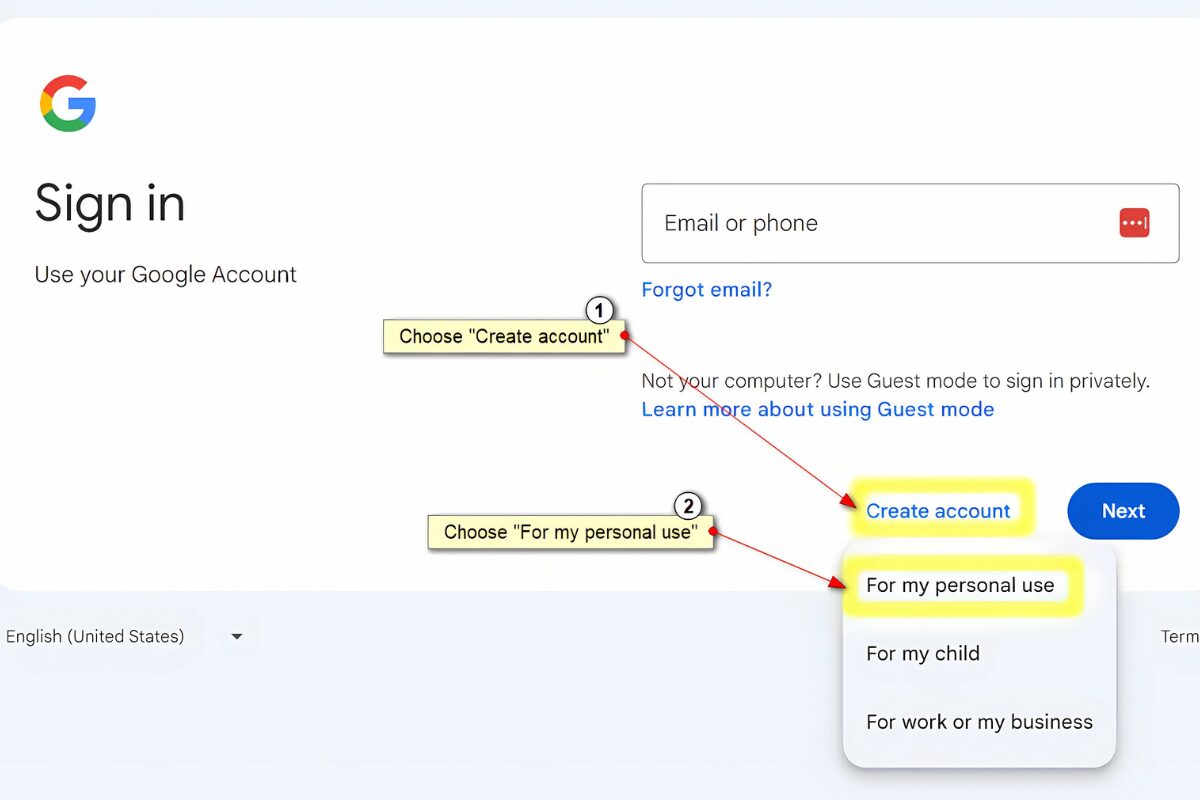
Sign in to your Google account associated with your business
Start by logging into the Google account associated with your Business Profile. Then, follow these steps:
- Go to Google Search or Google Maps.
- Search for your business name.
- Click on the profile that appears to manage your listing
From here, you’ll be able to make updates to your profile, including hours of operation.
Important: Make sure your business profile is verified before you make edits. Unverified listings won’t allow hour updates.
Step 2: Navigating to Your Hours Section
Once you’re inside your business management dashboard:
- Click “Edit Profile”
- Then click on the “Hours” tab
- Scroll down to find the “Holiday Hours” or “Special Hours” section
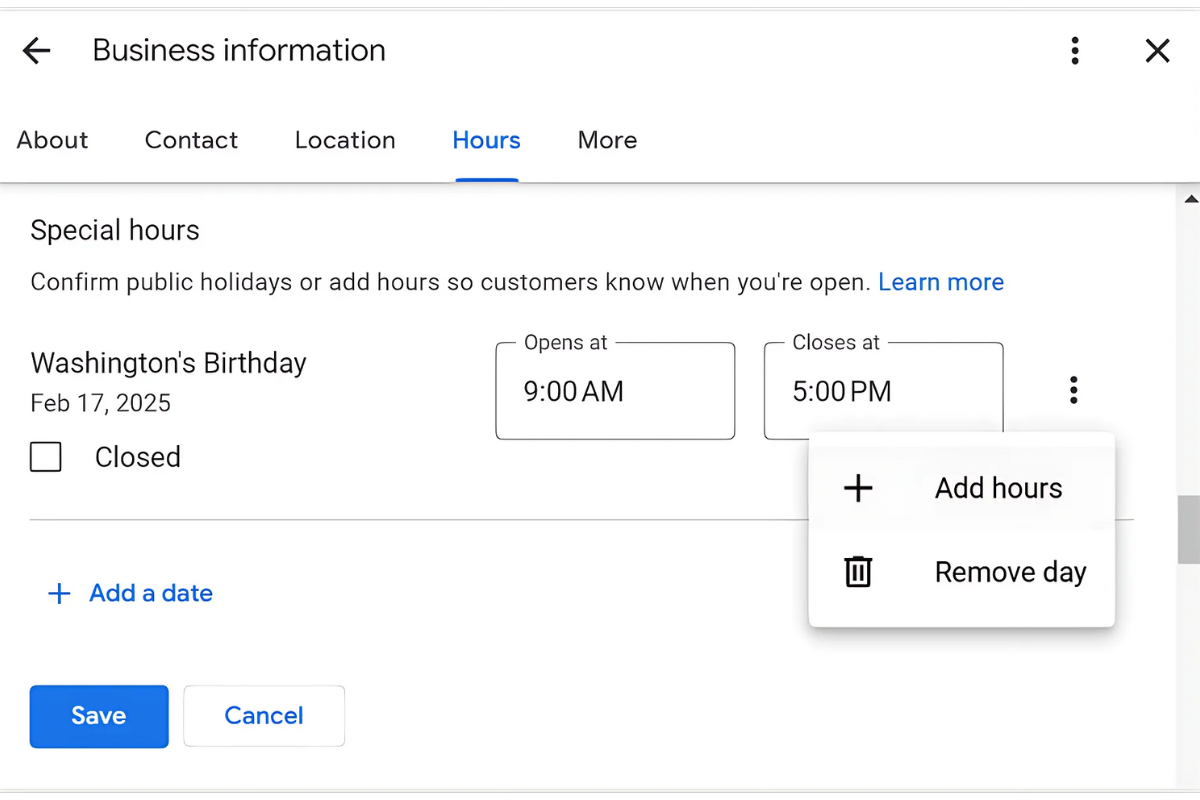
Find your business hours section to input holiday-specific changes
Note: If your regular hours are not set yet, you’ll need to set those before adding special hours.
Step 3: Adding Special Holiday Hours
This is the core of how to add holiday hours to Google Business. Google provides a dedicated feature for adding “Special hours” or “More hours.”
- Click “Add Hours” under the “Special hours” section
- Select the holiday you want to modify. For instance, Google may auto-suggest common holidays (e.g., New Year’s Day, Christmas, Thanksgiving)
- Choose the holiday you want to edit or click “Add a date” for custom days
- Set your open and close hours for that day
- If you’re closed on a holiday, simply select “Closed”
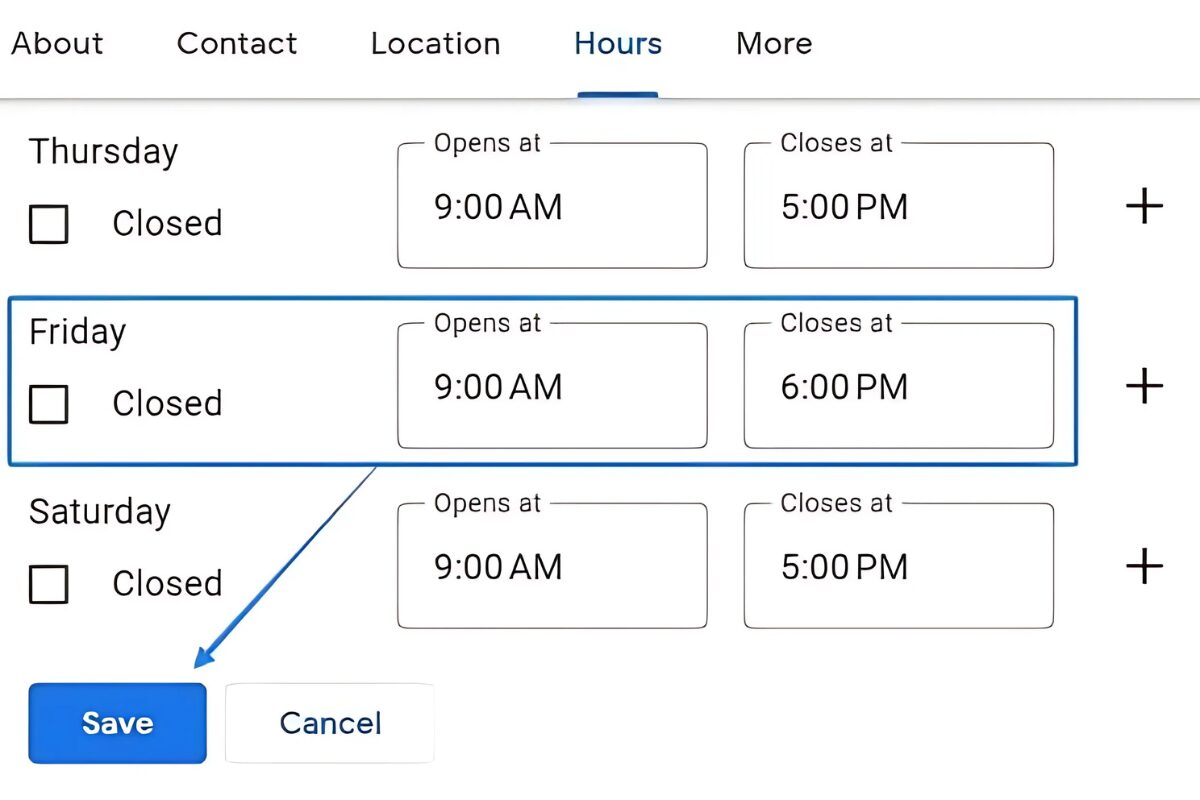
Repeat for each holiday or special event where your hours differ from normal
Example: Your retail store usually closes at 9 PM, but on December 24, you’ll close at 5 PM. Use the special hours setting to reflect that change.
Step 4: Review and Save
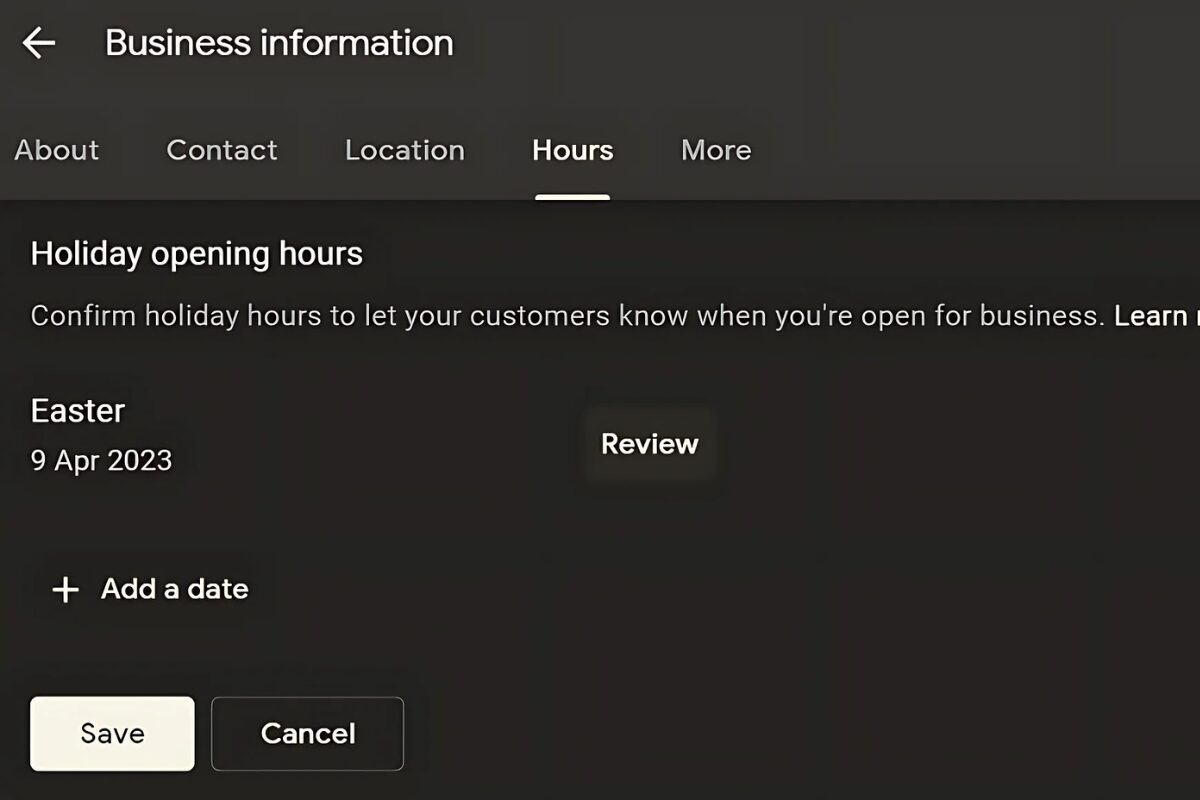
Double-check details and save your updates to keep customers informed
Once you’ve entered all the necessary dates:
- Double-check each entry for accuracy
- Confirm that dates and times are correct
- Click “Save”
These hours will now show on your Google Business listing and will override your regular schedule for those specific dates.
Step 5: Additional Tips for Special Hours
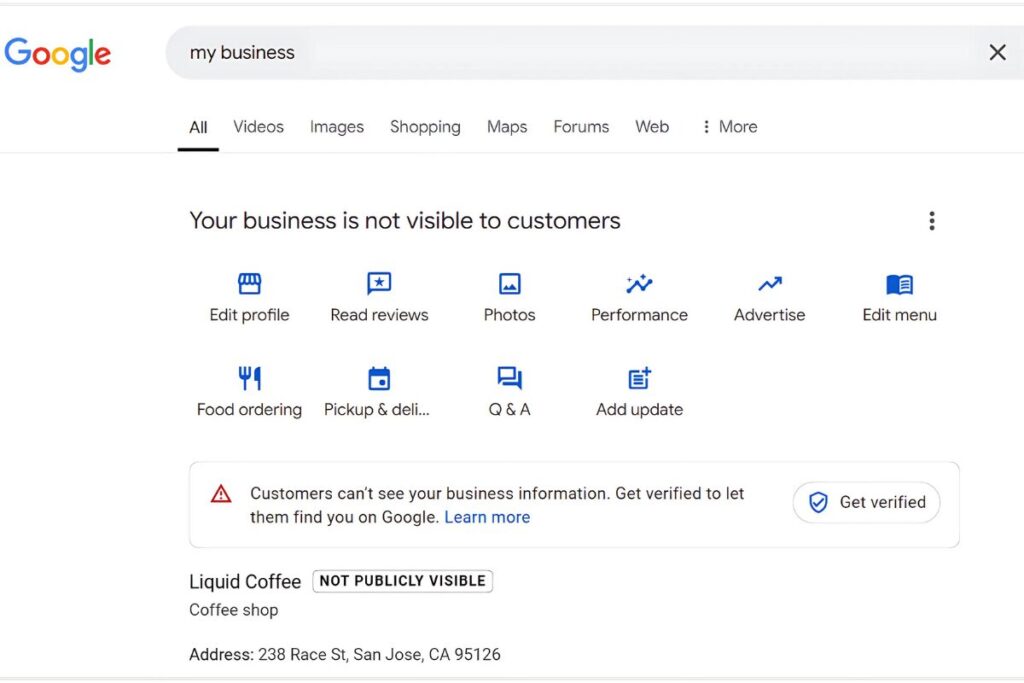
Maximize visibility and reduce confusion
Here are a few best practices to enhance your listing:
- Plan ahead: Update at least 1–2 weeks in advance
- Be specific: Use exact open/close times, not vague ranges
- Add recurring dates: If you close every year on a certain holiday, Google often lets you reuse past data
- Preview the listing: Check how it appears on both desktop and mobile
And remember, updating your holiday hours is free and takes just a few minutes—but it can save your business from hours of confusion or lost sales.
Managing Holiday Hours for Multiple Locations
If you manage more than one location, manual updates quickly become inefficient. This is where most growing businesses run into operational friction.
For multi-location or enterprise setups, consider:
- GBP Bulk Upload Spreadsheet:
Google allows bulk editing through a structured spreadsheet template. You can update special hours across dozens or hundreds of locations at once. This reduces manual entry errors and ensures consistency across branches. - Business Profile API:
For larger organizations or franchise systems, the API enables programmatic updates. Holiday hours can be pushed directly from your internal system into Google Business Profiles. This is especially useful for chains with centralized control. - Assign Location Managers:
Give individual store managers limited access to confirm local holiday variations while keeping corporate oversight. This prevents headquarters from guessing local holiday schedules.
In practice, what tends to work best is a hybrid approach. Corporate defines national holidays, local managers confirm regional adjustments, and bulk tools handle distribution.
3. Common Mistakes and How to Avoid Them
Even though the process of adding holiday hours is simple, businesses often make small errors that can create big problems. Here are two of the most common mistakes and how to avoid them:
3.1. Forgetting to Update or Entering Incorrect Hours
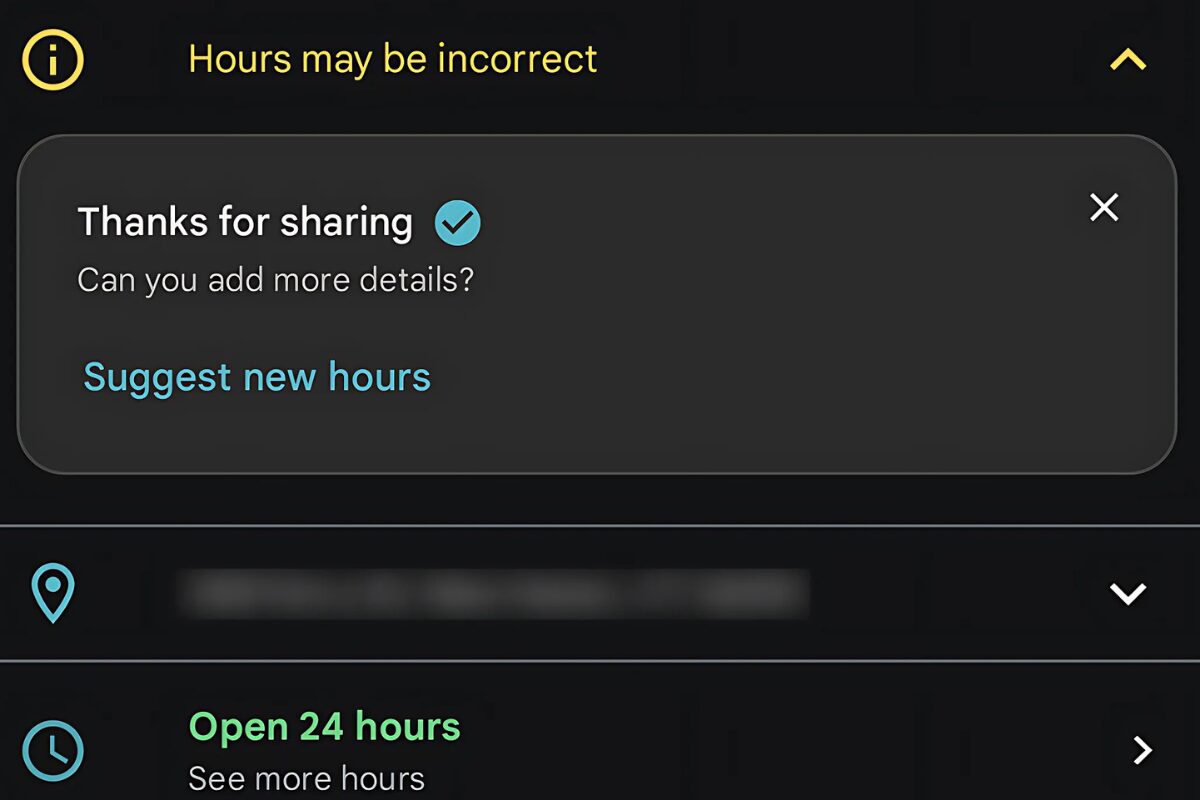
Common mistakes like wrong times or missed updates can cost you real customers
This is the most common and damaging mistake. Forgetting to update means customers will see your regular hours, leading to frustration when they arrive at a closed business. Entering incorrect hours (e.g., typing 9 PM instead of 9 AM) creates similar issues.
Some tips to avoid:
- Set a calendar reminder every quarter or before major holidays: Use your calendar (Google Calendar, Outlook, etc.) to set recurring reminders a few weeks before major holidays.
- Double-check AM/PM selections: Always review your entries before saving. Get a colleague to double-check if possible, especially for critical dates.
- Create a Checklist: Use Google’s suggested holidays to avoid missing the obvious ones
3.2. Updating Too Early or Too Late
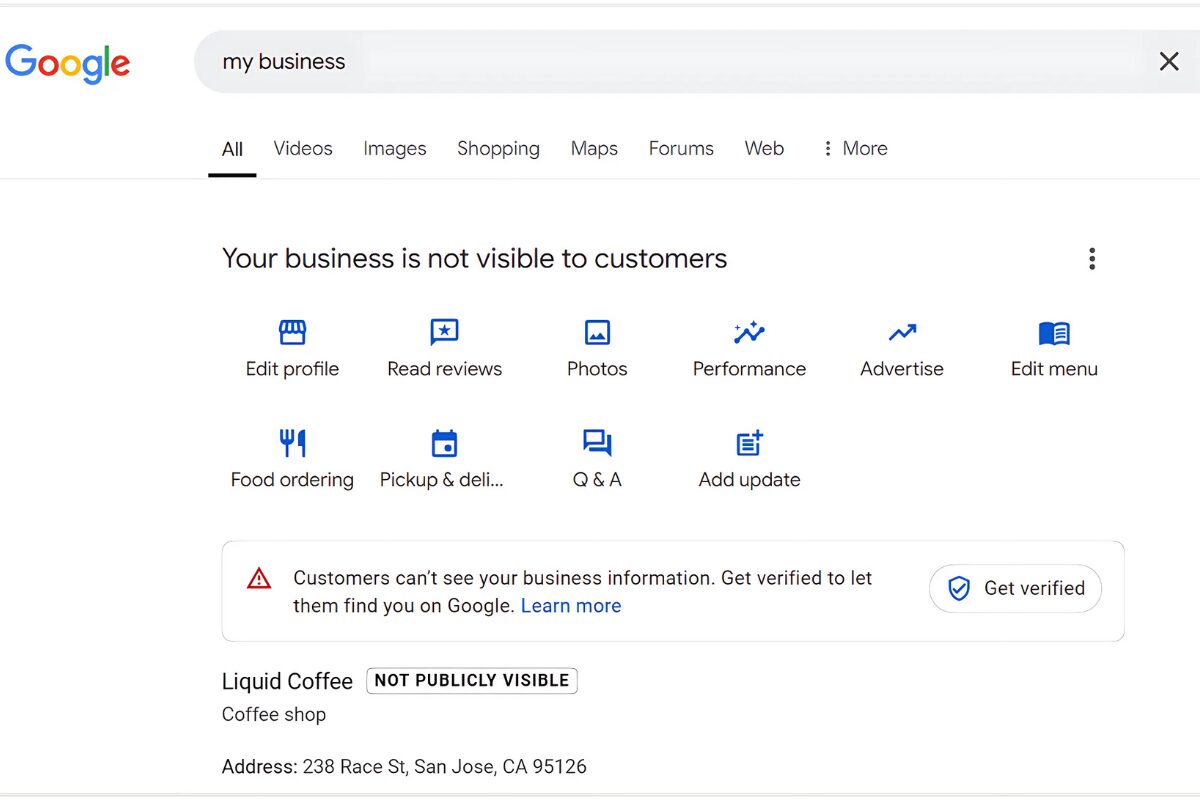
Timing is key; update your holiday hours within 1–2 weeks before the event
While it’s good to be proactive, updating your holiday hours too far in advance (e.g., three months before Christmas) might not be ideal. Your plans could change, leading to a need for further edits.
How to Avoid:
- The Sweet Spot: Aim to update your holiday hours about 2-4 weeks before the actual holiday. This gives Google enough time to process and display the changes, and it’s close enough to the date that your plans are likely finalized.
- Prioritize Major Holidays: Focus on high-impact holidays first (e.g., New Year’s, Christmas, local public holidays) before moving on to less critical ones.
4. The Best Time to Update Holiday Hours
So, when should you update your holiday hours in your Google Business Profile? The ideal time is:
- 7 to 14 days before the holiday or special date
- Early in the week, to allow Google’s system time to process and reflect changes
- Before advertising or posting any holiday promos to avoid mismatch in information
Google often reminds business owners about upcoming holidays. Take advantage of these prompts as part of your local SEO workflow.
The ideal window is 7–14 days before major holidays
For example, if Christmas is on December 25th, aim to update your hours sometime between December 1st and December 11th. For New Year’s Day on January 1st, look to update in mid-December.
And don’t forget: If you reopen at different hours after the holiday (for example, extended weekend hours or early closures before a major event), update those as well. Keeping things timely and accurate is key.
5. FAQ
Here are answers to common questions related to how to add holiday hours to Google Business and manage special hours effectively.
Q: What happens if I don’t update holiday hours?
Your regular hours will display by default, even on holidays. If you’re closed on a day marked “Open,” customers may show up and be disappointed—leading to negative reviews or lost trust.
Q: How long does it take for holiday hours to show up on Google?
Usually, changes go live within minutes. However, Google may take up to 24 hours to review updates, especially during high-traffic seasons.
Q: Can I set recurring holiday hours?
Currently, Google doesn’t support automatic recurring special hours. You’ll need to manually update each holiday season, but it gets quicker over time as Google suggests previously entered holidays.
Q: Will Google notify customers of my special hours?
Yes. Google shows “Special hours” or “Holiday hours” on your Business Profile in both Search and Maps. This helps customers see exactly when you’re open or closed.
Q: Can I add hours for multiple holidays at once?
Yes. You can queue up multiple dates and set different hours for each. This is especially helpful during the year-end when several holidays fall close together.
Q: What’s the difference between “special hours” and “regular hours”?
“Regular hours” refer to your standard weekly schedule. “Special hours” temporarily override those times for specific dates, like holidays, events, or one-off closures.
Final Thoughts
Holiday hours may seem like a small update, but they directly affect trust, engagement, and local pack stability. When your listing shows the wrong information, customers react quickly, and Google reacts to them.
Following this guide on How To Add Holiday Hours to Google Business Profile helps you protect visibility and avoid preventable review damage during peak seasons.
If managing local listings across campaigns, promotions, or multiple locations is starting to feel reactive, this is usually where structured local SEO makes a difference. At Golden Owl Digital, we help B2B teams turn scattered profile updates into a controlled, SEO-integrated system, so your visibility stays consistent while you focus on growth.